
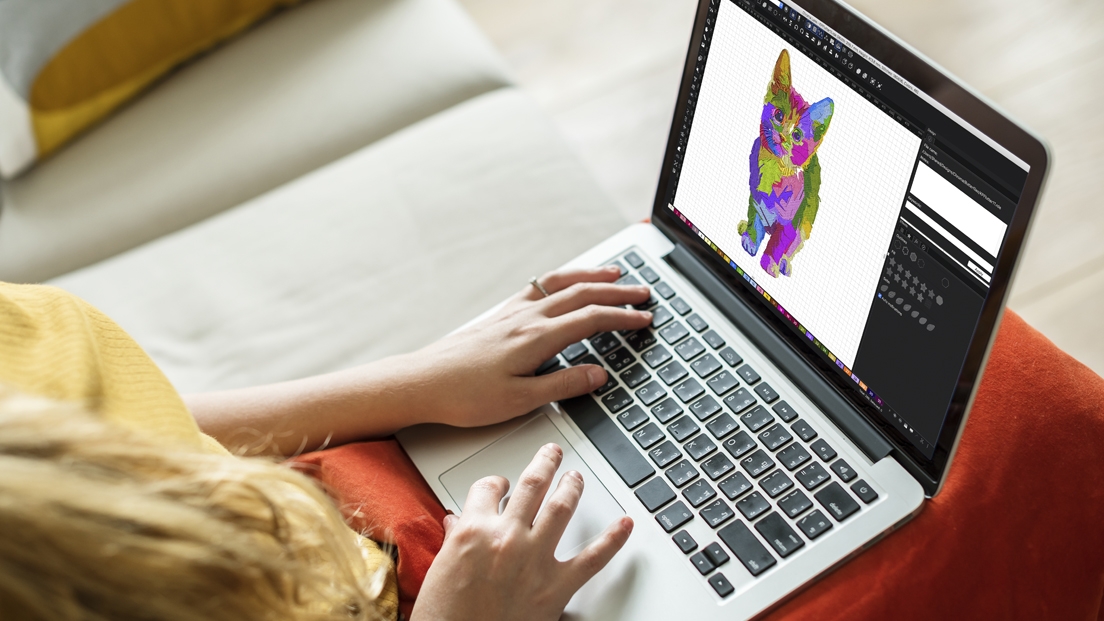
You have a great design. You want it on a t-shirt. You send it to the printer. But when the shirt comes back, the lines look fuzzy. The colors bleed. The text is hard to read. This disappointment usually traces back to one simple problem: the file. To get professional results on fabric, you need to know how to Create a Vector File for DTG Printing. This skill separates hobbyists from people who sell shirts that people actually want to wear.
Direct to Garment printing changed the game. It works like a paper printer, but on fabric. It sprays ink directly into the fibers. This creates soft prints with no heavy hand feel. But DTG machines are picky. They need clean, sharp files. Raster images like JPEGs and PNGs often cause problems. Vectors solve those problems. Let's talk about what vectors are and how you build them for perfect t-shirts.
What is a Vector File Anyway?
Before we open any software, we need to understand the difference between raster and vector. Raster images use pixels. Think of a digital photo. If you zoom in, you see tiny squares. If you make that photo bigger, the squares get bigger and the image looks blocky. This is pixelation.
Vector files use math. They use points, lines, and curves. A circle in a vector file is not a bunch of pixels arranged in a circle shape. It is a formula that says "draw a circle with this radius." Because of this, vectors scale infinitely. You can make a vector logo the size of a business card or the side of a building. It stays crisp.
For DTG printing, vectors give you clean edges. Text stays sharp. Logos look professional. The printer software reads the vector paths and lays down ink exactly where it belongs.
Why DTG Demands Vectors
DTG printers lay down a base layer of white ink, then print the colors on top. This process needs precise shapes. If your file has fuzzy edges, the white base will be fuzzy. Then the colors print fuzzy. You end up with a blurry shirt.
Raster files also hide problems. A JPEG might look fine on your phone screen. But when the DTG software interprets it, it might see millions of colors. It might create halos around edges. It might dither the colors, which makes them look grainy. Vector files stay clean. They tell the printer exactly where to put each color with no guesswork.
Choosing Your Software
You need the right tools to build vectors. Adobe Illustrator is the industry standard. It uses a drawing system based on paths and anchor points. You have total control over every curve. If you plan to do a lot of design work, Illustrator is worth the investment.
Inkscape is a powerful free alternative. It does not have all the bells and whistles of Illustrator, but it handles vector creation well. For simple t-shirt designs, it works great. CorelDRAW is another option, popular in the sign and apparel world. Pick one and learn it well. The principles transfer between programs.
Starting with a Clean Concept
Sometimes you start from scratch. You open your software and draw your design. This is the easiest path because you control everything from the beginning. Use the pen tool or shape tools to build your artwork. Keep your lines smooth. Avoid too many anchor points. Clean paths print cleaner shirts.
Often, you work from an existing idea. A client hands you a logo on a napkin. Or a low-res JPEG from their website. You need to trace it. In Illustrator, you can use the Image Trace function. This converts raster images to vectors automatically. But it is not magic. You usually need to clean up the result. Expand the trace and look at the paths. Delete extra points. Simplify curves. Make it yours.
Resolution and Size Matters
Even though vectors scale infinitely, you still need to think about size. Set your artboard to the actual print size. If the design goes on a chest, maybe 4 inches wide. If it is a back print, maybe 12 inches wide. Working at actual size helps you see proportions correctly.
When you save your final file for printing, you might need a raster version. DTG software often wants high-res PNG files with transparent backgrounds. Export at 300 DPI minimum. Do not go lower. 300 DPI at actual print size gives the printer enough data to lay down smooth ink. If you go to 150 DPI, you risk visible pixelation in the final shirt.
Color Separation for DTG
DTG handles color differently than screen printing. Screen printing needs separate screens for each color. DTG prints everything at once. But you still need to think about color separation in your file.
Build your design in layers. Put each color on its own layer in your vector software. This helps the printer software understand the design. If you have a red circle on a blue background, keep those elements separate. Name your layers clearly. Red Layer. Blue Layer. White Underbase.
The white underbase is crucial. DTG printers print white ink first on dark garments. This white layer makes the colors pop. If your design has white elements, those areas do not get white underbase. The printer leaves those spots empty so the white ink shows through. Proper layering in your vector file ensures the printer software knows where to put white and where to leave it alone.
Trapping and Bleed
In screen printing, you add traps to prevent registration issues. In DTG, the computer handles registration perfectly. You do not need to overlap colors. But you do need to think about the edges of your design.
If your design goes all the way to the edge of the print area, you need bleed. Bleed extends the design past the cut line. This ensures that if the print shifts slightly during production, you do not get white gaps. Add about an eighth of an inch of bleed to any edge that touches the shirt boundary.
Text and Fonts
Text causes major headaches in DTG if you handle it wrong. Never send fonts as outlines if you want the printer to edit them later. But for final production, convert text to outlines. This turns the letters into vector shapes. It prevents font substitution issues. If the printer does not have your exact font installed, the file will not break. The shapes stay intact.
Keep font sizes readable. Small text, especially thin serif fonts, can fill in with ink. The DTG process lays down a wet ink film. Tiny details sometimes clog. If you need small text, use bold sans-serif fonts. Test your design at actual print size. If you cannot read it on screen at 100 percent zoom, it will not read on the shirt.
Saving Your Files
Save your working file in the native format of your software. AI for Illustrator. SVG for Inkscape. Keep this master file. It holds all your layers and editability.
For the printer, export a high-res PNG with transparent background. Use 300 DPI. Make sure the colors are in RGB mode. DTG printers expect RGB files. CMYK is for offset printing. RGB gives you a wider color gamut and brighter prints on shirts.
If the printer specifically asks for a vector format, send PDF or EPS. These formats embed the vector data. The printer can scale them without loss. But always ask first. Different shops have different preferences.
Common Mistakes to Avoid
Beginners often make the same errors. Do not use raster images inside your vector file. If you place a JPEG logo inside an Illustrator file and call it a vector, you are fooling yourself. The JPEG stays raster. It will pixelate. Trace it or redraw it.
Do not forget to check your paths. Open paths cause printing errors. Make sure all your shapes are closed. Use the pathfinder tools to merge overlapping shapes. Clean files print clean shirts.
Do not ignore the white underbase. On dark shirts, the white layer matters. If your file does not account for white, the printer software guesses. Guessing leads to muddy colors. Design with dark garments in mind from the start.
Testing Before Bulk Production
Always run a test print. Print one shirt. Wash it. Dry it. Look at it. Does the color match your screen? Are the edges sharp? Is the text readable? Sometimes designs look perfect on screen but print poorly. The test saves you from ruining fifty shirts.
If the test fails, go back to your vector file. Adjust the colors. Simplify the details. Tighten the paths. Print another test. Repeat until it looks right. This process separates professionals from people who blame the printer for bad results.
Conclusion
Creating vector files for DTG printing takes practice. You need the right software, clean paths, proper layers, and attention to detail. But the effort pays off. Your shirts look crisp. Your customers feel proud to wear them. They come back for more. Master the vector file, and you master the print. Start with clean artwork, build it with purpose, and watch your apparel business grow. Every great shirt starts with a great file. Make yours great.

 English
 Arabic
 French
 Spanish
 Portuguese
 Deutsch
 Turkish
 Dutch
Dutch
 Russian
 Romaian
 Portuguese (Brazil)
 Greek
Greek